
Syncing onboard video with track telemetry, in the browser
How to line up a YouTube onboard with RaceChrono or RaceBox telemetry — one sync point, then every lap plays with the track map and speed trace following the footage.
A track day leaves you with two recordings of the same laps. The telemetry file knows where the car was and how fast it was going, sample by sample. The onboard footage shows what actually happened — the traffic you caught, the line through the corner, the moment the rear stepped out. And they usually live in different places: the data in your analysis tool, the video on YouTube.
So reviewing a lap means scrubbing a 22-minute video looking for the corner that matches the spot on the speed trace you’re staring at. You count laps from the start of the file, overshoot, scrub back. By the third session of the day nobody does it anymore.
Syncing the two fixes that, and it takes one click to set up. This post covers how it works in ApexLog — I built it, so read the tool-specific parts with that in mind. The recording side applies to anyone with a lap timer and a camera.
What a synced lap looks like
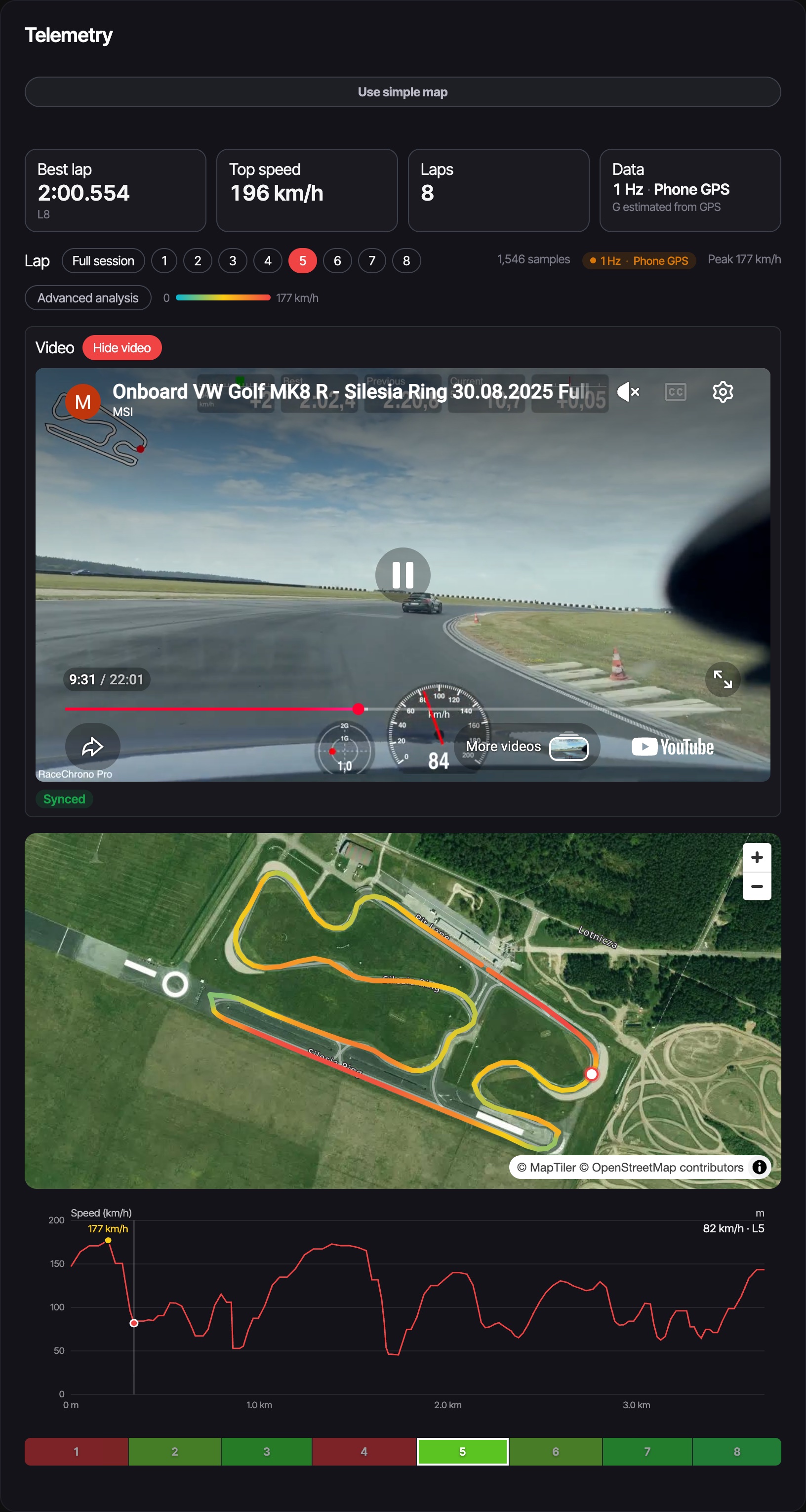
Once a video is synced to a session, the telemetry view and the player drive each other:
- Press play and a marker follows the car around the track map while a cursor moves along the speed trace, with the live readout next to it.
- Click a lap — in the lap list or the lap strip — and the video jumps to the start of that lap’s footage.
- Click anywhere on the speed trace and the video scrubs to that exact moment. The trace doubles as a video timeline.
- Cross the start/finish line during playback and the viewed lap advances with the footage, so the cursor doesn’t fall off the end of the chart.
You can see it running on a real session — my Golf R at Silesia Ring, eight laps, the onboard synced to the telemetry: open the live session, no account needed. Open the video under Telemetry, press play, then click a lap.
Synced player vs. burned-in overlay
There are two ways to put data and footage together, and they do different jobs. A burned-in overlay draws speed, lap time, delta and a small map into the video file itself: one finished clip with the data on top, made for posting. The gauges in the screenshot above were burned in that way, with RaceChrono, before the video went to YouTube.
The synced player renders nothing. The video stays on YouTube as it is, and the data stays interactive next to it: you can switch laps mid-playback, hover the trace to check a value, or jump the footage around from the chart. One is for showing a lap, the other is for working through it.
ApexLog now does both. The burned-in version is rendered from the original GoPro file in your browser, and it’s covered in its own post.
What you need
Two things, both of which you may already have:
- A telemetry file from the session — a RaceChrono export (
.rczor CSV v3) or a RaceBox CSV. The import rebuilds the sessions, laps and lap times from it. - The onboard, either on YouTube (public or unlisted; ApexLog stores the link) or as a file on your computer, such as the clip still on the SD card. YouTube is no longer a required step — see the update below.
The camera and the lap timer don’t need to know about each other. No shared clock, no beep at the start, no starting both at the same moment. The alignment happens once, after the fact.
Update 2026-10-05: no YouTube needed
This post was written when the onboard had to be on YouTube. It doesn’t any more: on a session’s Telemetry tab you can play the video straight from disk, or link the folder with your GoPro clips and let each session find its own by the camera’s GPS time. The video is synced the same way, drives the same map and trace, and is never uploaded. YouTube links still work, and the public share still plays the YouTube video. How the local player works is in Watch your GoPro onboard from the SD card, synced.
One sync point
Link the YouTube video to the session (or play a file from disk), open it in the Telemetry tab, and the player sits above the map and the speed trace. Calibration is a single interaction:
- Pause the video at a moment you can find in the data. The two easiest: the car starting to move in the pit lane, or the first hard braking point — a cliff in the speed trace you can’t miss.
- Arm the sync point and click that moment on the trace. Done. The offset between video time and telemetry time is stored with the video, and every lap, seek and scrub is aligned from then on.
One offset per video is the whole model — there’s no drift correction, and across a 20–30 minute session I haven’t needed one. If you re-cut the video later, re-sync it the same way.
If the footage came from a GoPro that records GPS, you can skip the click: pick the original file from the camera and the offset is computed from the GPS time stored in it. The file is read in the browser and never uploaded. How that works is in the overlay post.
A note on granularity: the cursor moves at the rate your GPS recorded. The session in the screenshot is 1 Hz phone GPS, and the cursor steps once per second — coarse but entirely usable. A 25 Hz logger like a RaceBox Mini gives the marker an almost continuous glide.
Watching a lap with someone
The synced player also works on the public session share. If you’ve enabled telemetry on the share link, a viewer without an account gets the same playback — cursor on the map, lap seek, trace scrub — read-only, with the calibration you set. The live session linked above is exactly that: a share link, opened logged-out.
That changes what a share is good for. Instead of sending someone a lap time and a separate YouTube link, you send one page where the footage and the data are already lined up — a friend can watch your fastest lap with the speed trace running under it, or an instructor can scrub to the corner you asked about, on their side, at their pace.
The session itself stays in the same place as the rest of the day: laps, setup, tires and pressures in the track day logbook, with the video attached to the session it belongs to.
Try it with one session
If you have a session file and an onboard of the same stint on YouTube, the whole setup is an import, a link and one click on the speed trace:
Import a session and sync your onboard →
Free during beta. The RaceChrono import page covers
the upload for .rcz and CSV v3 files — and if the file and the footage are
from the same stint, they’ll meet in the middle.